

Download Microsoft Remote Desktop – Secure Remote Access for Mac, Windows, iOS & Android
Overview & Why It Matters
Microsoft Remote Desktop (RD) is a free, cross‑platform tool that lets you control a Windows PC from a Mac, iPhone, iPad, Android device, or even another Windows machine. In today’s increasingly distributed work environment, the ability to connect securely to a corporate desktop from anywhere is no longer a luxury—it’s a necessity. Whether you’re an IT administrator troubleshooting a remote office, a freelance designer needing access to licensed Windows‑only software, or a corporate employee pulling up a PowerPoint on the go, RD provides a seamless, encrypted tunnel that feels as if you’re sitting right in front of the host computer.
The app uses industry‑standard Remote Desktop Protocol (RDP) with added layers of security, such as multi‑factor authentication (MFA) and end‑to‑end encryption, ensuring that every keystroke, file transfer, and screen update travels safely across the internet. Microsoft has integrated the client tightly with Microsoft 365, meaning single‑sign‑on (SSO) and conditional access policies work out of the box. This deep integration reduces the administrative overhead of managing separate VPNs or third‑party remote tools, while still delivering high‑performance graphics streaming via RemoteFX, even on modest bandwidth connections.
The Mac version of Microsoft Remote Desktop has matured considerably since its initial release. It now mirrors the look and feel of the native Windows client, offering a familiar user interface for both seasoned Windows users and Mac‑first professionals. The app is regularly updated through the Mac App Store, guaranteeing that security patches, performance enhancements, and feature expansions arrive automatically—so you can focus on work rather than maintenance. Below, we’ll explore the key capabilities, walk through the setup process, and evaluate how the tool stacks up against competing remote‑desktop solutions.
Core Features That Set Microsoft Remote Desktop Apart
- Secure Connections: Built‑in TLS encryption, Network Level Authentication (NLA), and optional MFA protect data in transit.
- Multi‑Monitor Support: Extend a remote session across several displays on your Mac for a true multi‑screen experience.
- RemoteFX & Adaptive Graphics: Optimized video and audio streaming that reduces latency on low‑bandwidth networks.
- File & Clipboard Sync: Drag‑and‑drop files between local and remote machines and copy/paste text and images effortlessly.
- Session Control & User Management: Administrators can monitor active sessions, enforce policies, and disconnect users if needed.
- Microsoft 365 Integration: Single‑sign‑on using Azure AD, conditional access, and seamless access to Office apps.
- Cross‑Platform Consistency: Identical experience on macOS, Windows, iOS, and Android, ensuring teams stay productive on any device.
- Customizable Display Settings: Adjust resolution, color depth, and scaling to match the capabilities of your network and hardware.
Each of these features is designed with productivity in mind. For example, RemoteFX dynamically adjusts compression levels based on real‑time bandwidth analysis, delivering smooth video playback even when you’re on a 3G connection. The file‑transfer capabilities eliminate the need for separate cloud‑storage steps; you can move a large design asset from your Mac to a Windows workstation with a simple drag. Meanwhile, the session‑control panel gives IT managers a bird’s‑eye view of who is connected, enabling rapid response to security incidents. Together, these capabilities make Microsoft Remote Desktop a robust, enterprise‑ready solution that still feels approachable for individual users.
Installation, Configuration & Daily Use
Step‑by‑Step Setup on macOS
- Download the App: Open the Mac App Store, search for “Microsoft Remote Desktop,” and click Get. The app is free and updates automatically.
- Enable Remote Access on the Host PC: On the Windows computer you wish to control, go to Settings > System > Remote Desktop and toggle “Enable Remote Desktop.” Note the PC name and ensure the user account has permission to connect.
- Configure Network Settings: If the host is behind a firewall or router, forward TCP port 3389 or use a VPN to expose the RDP endpoint securely.
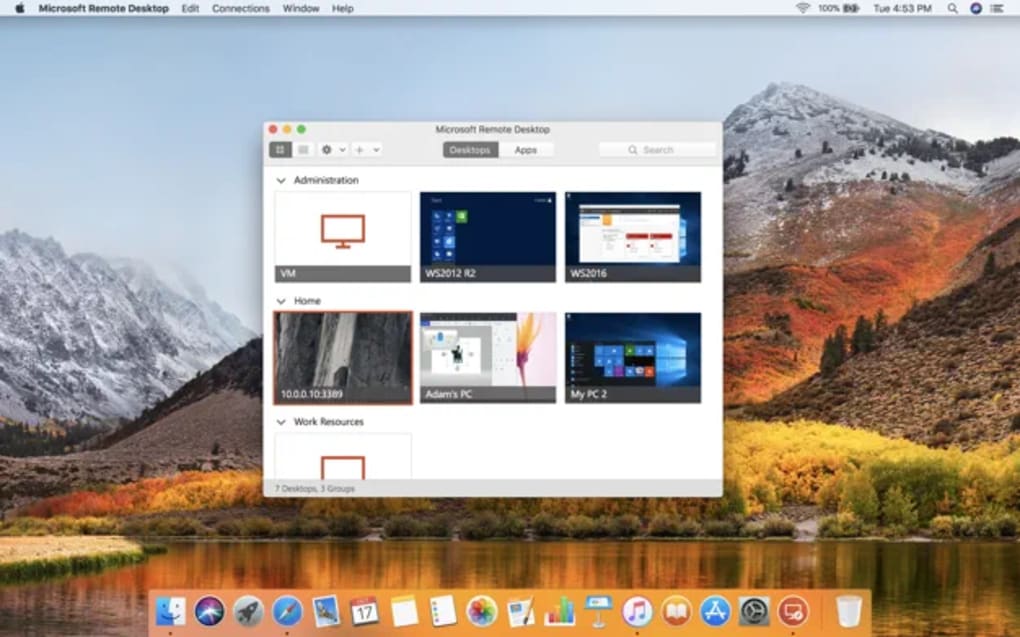
- Add a New Connection: Launch Microsoft Remote Desktop on your Mac, click the Add PC button, and enter the PC name or IP address. Optionally, store credentials for quick log‑ins.
- Adjust Display & Experience Options: Choose resolution, enable “Start session in full screen,” and toggle “Use all monitors” if you have a multi‑monitor setup.
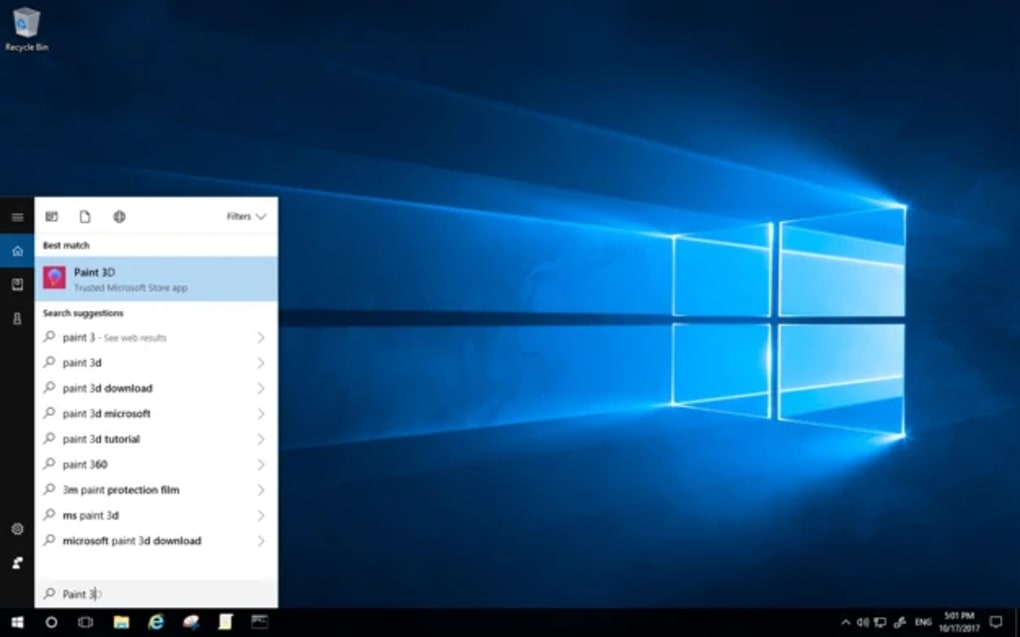
- Connect: Double‑click the newly created tile. You’ll be prompted for credentials if they weren’t saved. Once authenticated, the remote Windows desktop appears within a window on your Mac.
The iOS and Android clients follow a similar workflow: install the app from the respective app store, add a PC using the same connection details, and tap to connect. Because Microsoft Remote Desktop uses the same backend services across platforms, your session settings (such as saved credentials and display preferences) sync when you sign in with your Microsoft 365 account.
Daily usage is straightforward. You can switch between multiple remote PCs from the home screen, copy files via the shared folder feature, and even print to a local printer using the “Redirect printers” option. For power users, keyboard shortcuts (Cmd+Alt+Delete to send Ctrl+Alt+Del) are supported, ensuring you retain full control over the remote environment.
Compatibility, Pros & Cons
Microsoft Remote Desktop runs on macOS 10.14 (Mojave) or later, Windows 10/11, iOS 13+, Android 7.0+, and also offers a web client through Azure Virtual Desktop. Minimum hardware requirements include 4 GB RAM and 10 GB free storage on macOS, though smoother performance is achieved with 8 GB+ RAM and a solid‑state drive.
Pros
- Free to download and use with no hidden licensing fees.
- Enterprise‑grade security with TLS, NLA, and MFA.
- Native integration with Microsoft 365 for SSO and conditional access.
- High‑performance graphics streaming via RemoteFX.
- Cross‑platform support ensures consistent experience on Mac, Windows, iOS, and Android.
- Easy file transfer and clipboard sharing simplify workflow.
Cons
- Requires the host PC to have Remote Desktop enabled, which may be restricted in some corporate policies.
- Performance can degrade on extremely low‑bandwidth connections despite adaptive compression.
- Limited customization of UI themes compared to some third‑party tools.
- Requires port 3389 to be open or a VPN, which may add configuration steps for non‑technical users.
Frequently Asked Questions
Is Microsoft Remote Desktop free for personal use?
Yes, the client app is free to download from the Mac App Store, Microsoft Store, iOS App Store, and Google Play. You only need a Windows license on the host PC, which most users already have.
Can I connect to a Windows 10 Home edition PC?
Remote Desktop host functionality is built into Windows 10/11 Pro, Enterprise, and Education editions. Windows Home does not include the server component, but you can enable third‑party RDP servers or upgrade to a Pro license.
How secure is the connection?
The connection uses TLS 1.2 or higher, Network Level Authentication, and can be paired with Azure AD multi‑factor authentication. Data is encrypted end‑to‑end, making it safe for transmitting confidential corporate information.
Can I use Microsoft Remote Desktop with Azure Virtual Desktop?
Absolutely. The client works seamlessly with Azure Virtual Desktop (AVD), allowing you to connect to pooled or personal host pools, and it respects the same security policies defined in Azure.
What should I do if I experience lag or screen flickering?
Try lowering the display resolution, disabling visual effects on the remote PC, and ensuring you’re on a stable internet connection. Enabling “Optimize for low bandwidth” in the client settings can also improve performance.
Conclusion & Call to Action
Microsoft Remote Desktop stands out as a secure, reliable, and completely free solution for anyone who needs to bridge the gap between macOS and Windows environments. Its deep integration with Microsoft 365, robust encryption, and cross‑platform availability make it an ideal choice for remote workers, IT administrators, and businesses looking to reduce the overhead of multiple remote‑access tools. While it does require some basic network configuration and works best with Windows Pro or Enterprise editions, the payoff in productivity and security is well worth the effort.
Ready to bring your Windows desktop to your Mac or mobile device? Download Microsoft Remote Desktop now from the Mac App Store, set up your first connection in minutes, and experience the freedom of working from anywhere with confidence.
Pros: Secure, free, cross‑platform, Azure integration.
Cons: Requires Windows Pro, occasional bandwidth sensitivity.







